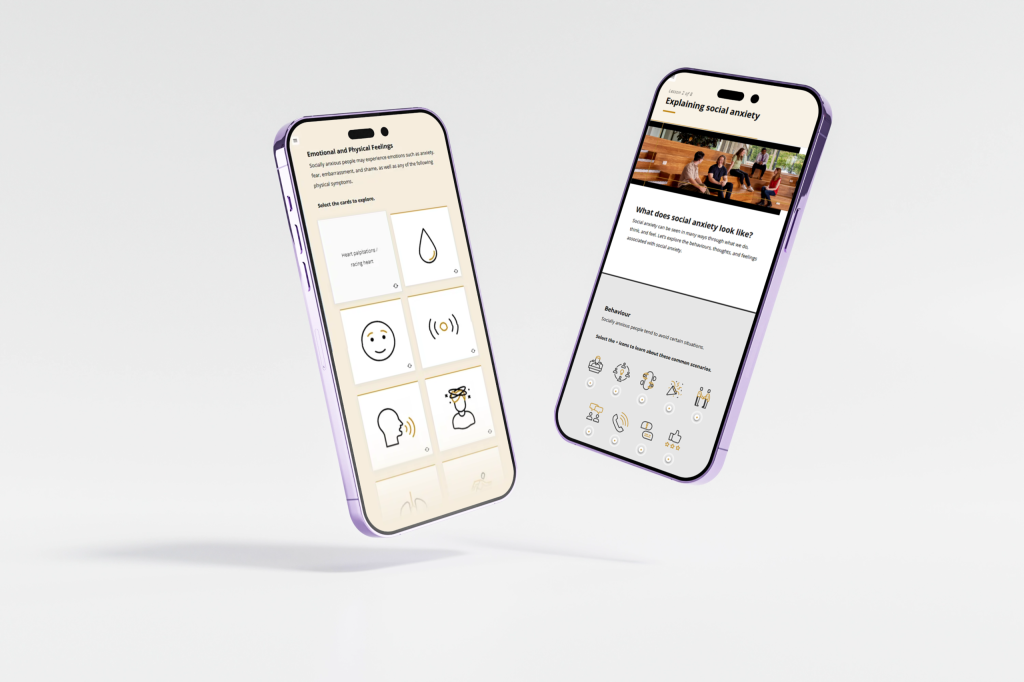
Course navigation shapes how learners experience and engage with the content.
When course navigation is inconsistent or unclear, learners lose time, focus, and confidence. Even the best content can be undermined by poor user experience. Research on cognitive load theory and multimedia learning shows that well-designed navigation supports learner autonomy, reduces frustration, and frees up cognitive resources for learning.
Whether you’re a learning designer, subject matter expert, or content developer, creating a clear and intuitive pathway through your course can significantly improve learner outcomes.
Our top tips
Be consistent with navigation
Use the same location, size, and style for navigation buttons throughout the module. If the “Next” button is bottom right on one screen, it should stay there on every screen. Inconsistencies force learners to stop and reorient, disrupting their learning flow.
Use instructive navigation labels
Avoid vague or non-descriptive button text like “Click here”. Instead, use text that tells learners what to expect:
“Start quiz,” “Watch video,” or “Explore scenario.”
Ensure that navigation buttons meet WCAG colour contrast standards. Buttons must stand out clearly from the background and text should be readable for all users.
Limit distractions
Too many clickable elements on one screen can overwhelm learners. Keep the navigation simple and uncluttered. Stick to primary actions per screen, such as “Next,” “Back,” and one interactive element at a time.
Provide orientation cues
Let learners know where they are within a module. Use a progress bar, breadcrumbs, or section labels like “Step 2 of 4” to provide context and build confidence in the learning journey.
Use icons with care
Icons (like arrows or play buttons) can aid understanding, but only if their meaning is clear. Always pair them with text labels and ensure they are intuitive for your audience.
Include keyboard navigation
Ensure that learners can navigate the module using only a keyboard. This benefits users with mobility impairments and improves overall accessibility.
Avoid auto-advancing screens
Let learners move at their own pace. Avoid automatically advancing slides or videos, especially without warning. Forced timing creates unnecessary pressure and can be particularly problematic for learners with varied digital literacy.
Well designed course navigation removes barriers, it doesn’t distract or disorient. When learners know how to move through the course without effort, they can focus on what really matters: the learning.
Clark, R. C., & Mayer, R. E. (2011). e-Learning and the science of instruction: Proven guidelines for consumers and designers of multimedia learning (3rd ed.). Pfeiffer.
W3C Web Accessibility Initiative. (2023). Web Content Accessibility Guidelines (WCAG) 2.2. https://www.w3.org/TR/WCAG22/
Norman, D. A. (2013). The design of everyday things (Revised ed.). Basic Books.
A few words about us
Working with Strawberry Solutions on the development of an online training package for mentors in the Parent Pathways service was an absolute pleasure.
Working with Strawberry Solutions was a pleasure, Meagan and her team provided professional service and support and delivered an excellent end product that met all of our requirements.
Their capacity to work in a collaborative way that is flexible and responsive is something I cannot speak highly enough of.
Meagan and the team at Strawberry Solutions were wonderful to work with. We are very happy with the final product, thanks Strawberry!
Working with Strawberry Solutions was a pleasure, Meagan and her team provided professional service and support and delivered an excellent end product that met all of our requirements.
Congratulations for doing an amazing job - We did feel like you were part of our team!
We loved the way you were able to adapt the courses to our different audiences.
Working with Strawberry Solutions enabled us to turn early-stage content into clear, engaging safety training that we can confidently deliver across the business. We really appreciated how easy the team was to work with.
Let’s see how we can work together to bring your ideas to life.